| Version | 12.309 |
|---|---|
| Size | 31 MB |
| Updated | Oct 1, 2026 |
| Category | Photos & Video |
| Requires | Android 7.1 |
| MOD info | Premium |
| Google Play | com.castify |
MOD features
- Premium.
Cast to TV is a software that helps users stream videos, music and images from Android devices to TVs or other compatible casting devices. The Castify app can connect with Chromecast, Roku, Fire TV, Google Cast receivers, DLNA devices and some Smart TVs with corresponding technology built-in. This allows users to display content currently viewed on their phone on a large screen without manually copying files.
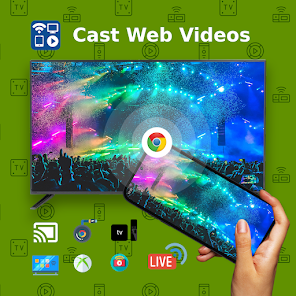
Overview of Cast to TV
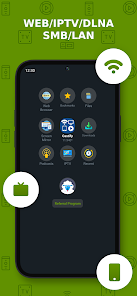
The standout feature of Cast to TV is its support for various types of content. Users can select videos, music or images on their phone, access websites through the integrated browser then cast compatible content to the TV. The app also supports IPTV, podcasts, DLNA servers and shared folders via SMB, Samba, NAS or LAN.
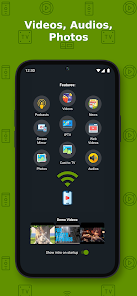
Compatibility depends on the receiving device. The app supports Chromecast, Roku, Fire TV, Xbox, DLNA and Google Cast, and can work with many Smart TV brands such as Samsung, LG, Sony Bravia, Panasonic, TCL and others when the TV has compatible receivers. Castify also notes that experience may vary between different device types, with Roku and Google Chromecast being better optimized.
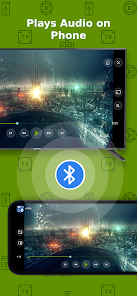
Streaming videos, music and images to a large screen
With Cast to TV, users can open content on their phone then select a receiving device to start playing on the TV. Locally stored video and music files can be cast directly, while content from websites can be played through the app's browser if the source uses compatible public formats.
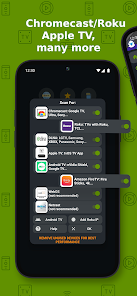
The app also supports subtitles for some devices, Universal Remote control for supported platforms, Picture-in-Picture and Screen Mirroring. For IPTV, users can use M3U playlist to access their content sources. Castify states that the app does not store or modify video sources but sends the stream to the receiving device, so playback capability still depends on the website and content format.
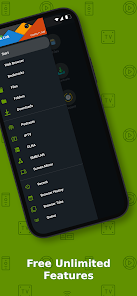
Tips and instructions for Cast to TV
To get started with Cast to TV, first connect your phone and TV or receiving device to the same Wi-Fi network. Then open the app, find the detected devices and select the one you want to use. Once connected successfully, you can choose videos, images or music from your phone to stream to the large screen.
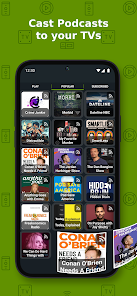
If you want to cast online videos, use the app's built-in browser to open websites and play compatible content. If videos don't play or connections keep dropping, check Wi-Fi signal, restart your phone and receiving device. Google Play also notes that connection quality, website servers and video formats can all affect streaming performance.
When using IPTV or online content sources, ensure you have access rights and permission to play that content. Additionally, not all proprietary video formats can be streamed through the app. If your TV supports built-in Chromecast or DLNA, check with the manufacturer's instructions to determine the appropriate connection method.
Conclusion
Cast to TV provides a convenient way to bring videos, music and images from your phone to a TV or online streaming device. Its support for multiple content sources along with Chromecast, Roku, Fire TV, DLNA, Google Cast and several Smart TVs makes it suitable for various home entertainment needs. If you frequently watch content on your phone but want to switch to a larger screen, this is a tool worth exploring.