

Cách Tắt Google Play Protect đơn giản trên Android APK Mới nhất
| ورژن | Mới nhất |
|---|---|
| اپ ڈیٹ | 3 اکتوبر، 2026 |
| زمرہ | رہنمائی اور ٹپس |
| ضروریات | Android |
Google Play Protect Security Feature is a built-in tool on the Android operating system, designed to ensure your device's safety from malware and potential threats. However, in some cases, this feature can be inconvenient, such as blocking the installation of apps from sources outside of Google Play or conflicting with certain software. If you want to disable Google Play Protect for more flexibility, here's a detailed guide.
Why You Might Want to Disable Google Play Protect
While Google Play Protect is built to protect your device, it can sometimes become a barrier when you want to install apps from sources like ApkUnlimit.com. Additionally, some apps may be incompatible with this feature, causing errors or instability. In such situations, temporarily disabling Google Play Protect can be an effective solution. After installing the app from a trusted source, you should re-enable it to prevent malware infections.
How to Temporarily Disable Google Play Protect
The process of disabling Google Play Protect is relatively simple, but keep in mind that the steps may vary depending on the Android version and the interface of each manufacturer. Here are the basic steps to follow:
Step 1: Access the Google Play Store App First, open the Google Play Store app on your Android device.
Step 2: Navigate to 'Play Protect' In the main interface of the Google Play Store, tap on your personal account icon in the top right corner. Then, find and select the 'Play Protect' option from the list.
Step 3: Open Feature Settings Once you're on the Play Protect page, you'll see the gear icon (Settings) in the top right corner. Tap on this to access the feature's options page.
Step 4: Disable Google Play Protect In the settings section, you'll find an option to disable this feature. Typically, this is a toggle switch or a slider. Simply tap it to turn off the feature. Note that a confirmation window may appear, requiring you to confirm again. Tap 'Disable' or 'Agree' to complete the process.
Step 5: Complete the Action After confirmation, Google Play Protect will be disabled on your device. From here, you can freely install apps from external sources without interference.
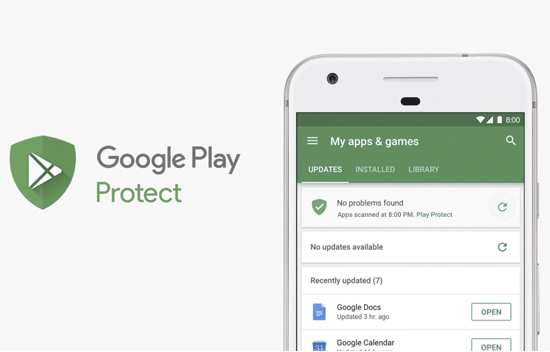
Important Notes When Temporarily Disabling Google Play Protect
Disabling Google Play Protect can increase the security risks to your device. When this feature is not active, you won't receive warnings about malware. Therefore, ensure you only download apps from trusted sources. If it's not necessary, you should re-enable Google Play Protect to maintain your device's safety.
We hope this guide helps you easily disable Google Play Protect when needed. Always carefully consider the benefits and risks before making any changes to your device!